
Build
Styled expressions
A wardrobe on its own doesn't render in front of any visitor. A baseline identity on its own only renders in the studio's preview. The piece that ties them together — the same face, generated through a wardrobe's lens, across the same nine expressions — is a styled appearance set. This chapter is about creating, generating, and scheduling them.
Getting in
Two paths, depending on where you're coming from.
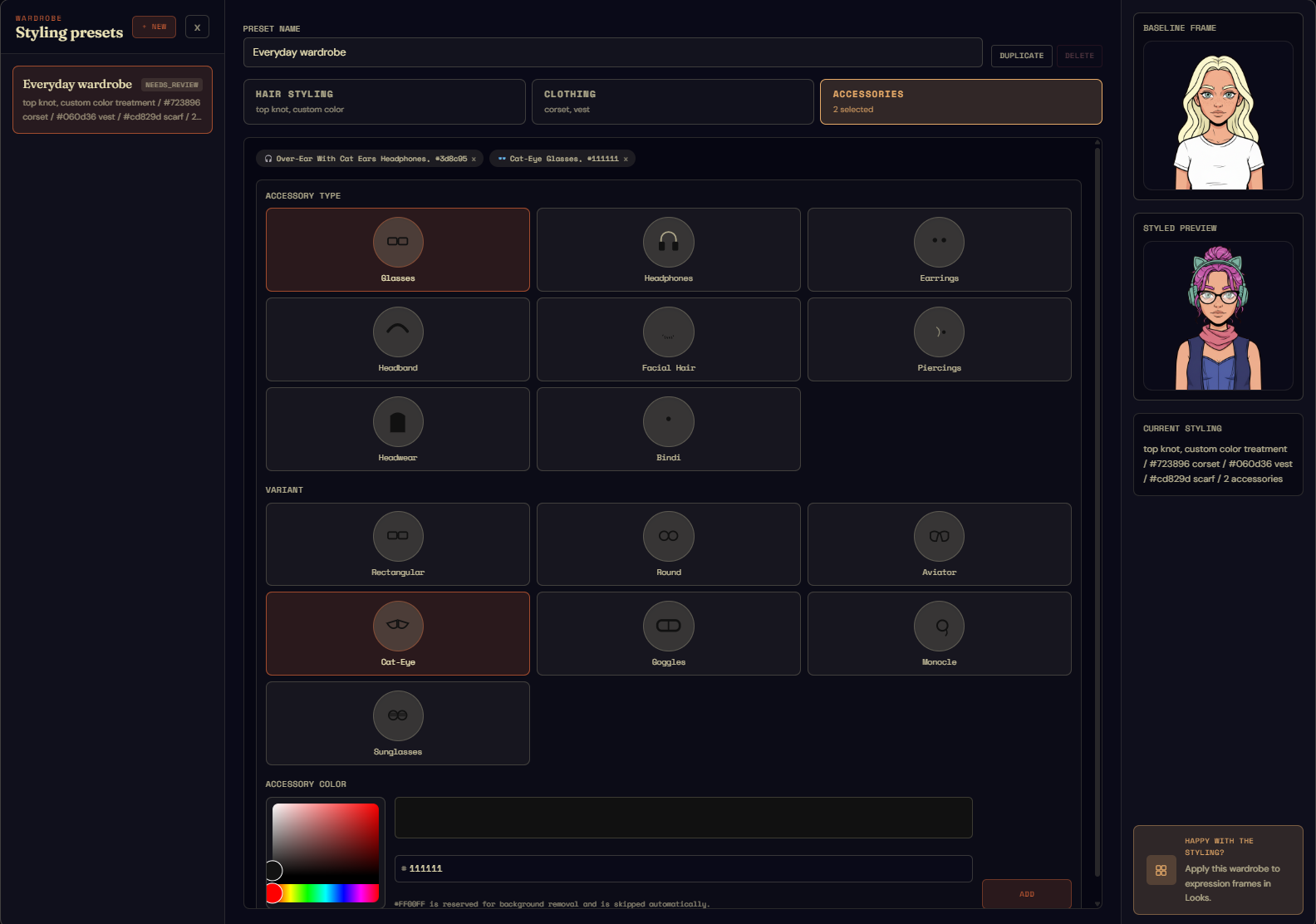
From the wardrobe editor, the Happy with styling? button in the bottom right creates a new appearance set already seeded with the current wardrobe. One click and you're in the set editor with the right preset already chosen.
You'll land back in the Looks editor — the same surface as the baseline expressions chapter, with a new row in the left-side list named after the wardrobe you came from, and the original Baseline entry still in place above it.
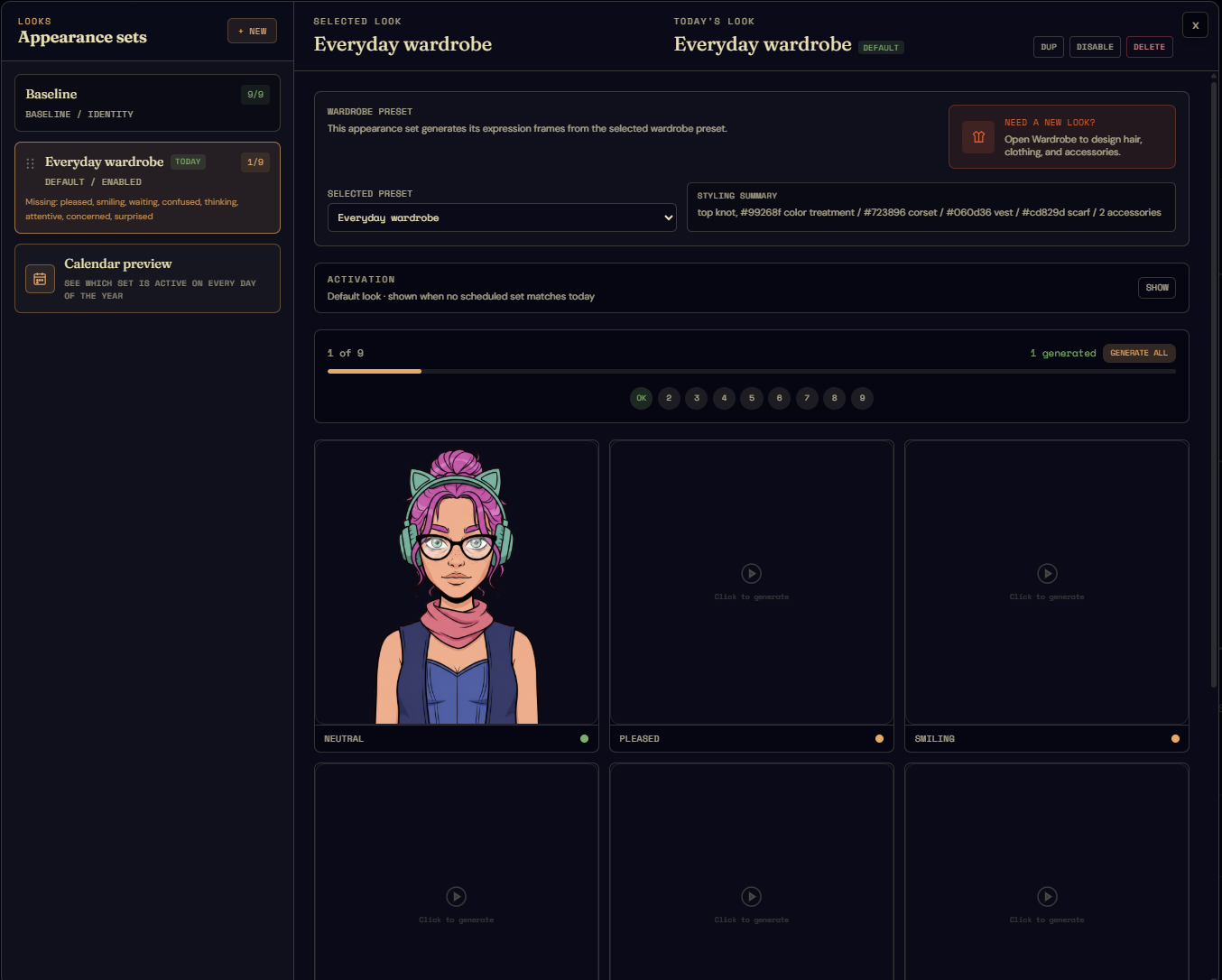
Note that the identity section at the top — which you saw when working with Baseline — is gone here. That's deliberate: only Baseline carries the identity, because letting each appearance set swap identities would let you swap personalities mid-conversation, which is not a thing this product wants to support.
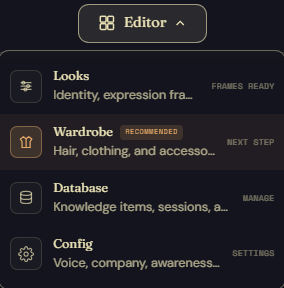
The other path is from the studio: top bar Editor → Looks, then click + New in the top-left corner of the sidebar.
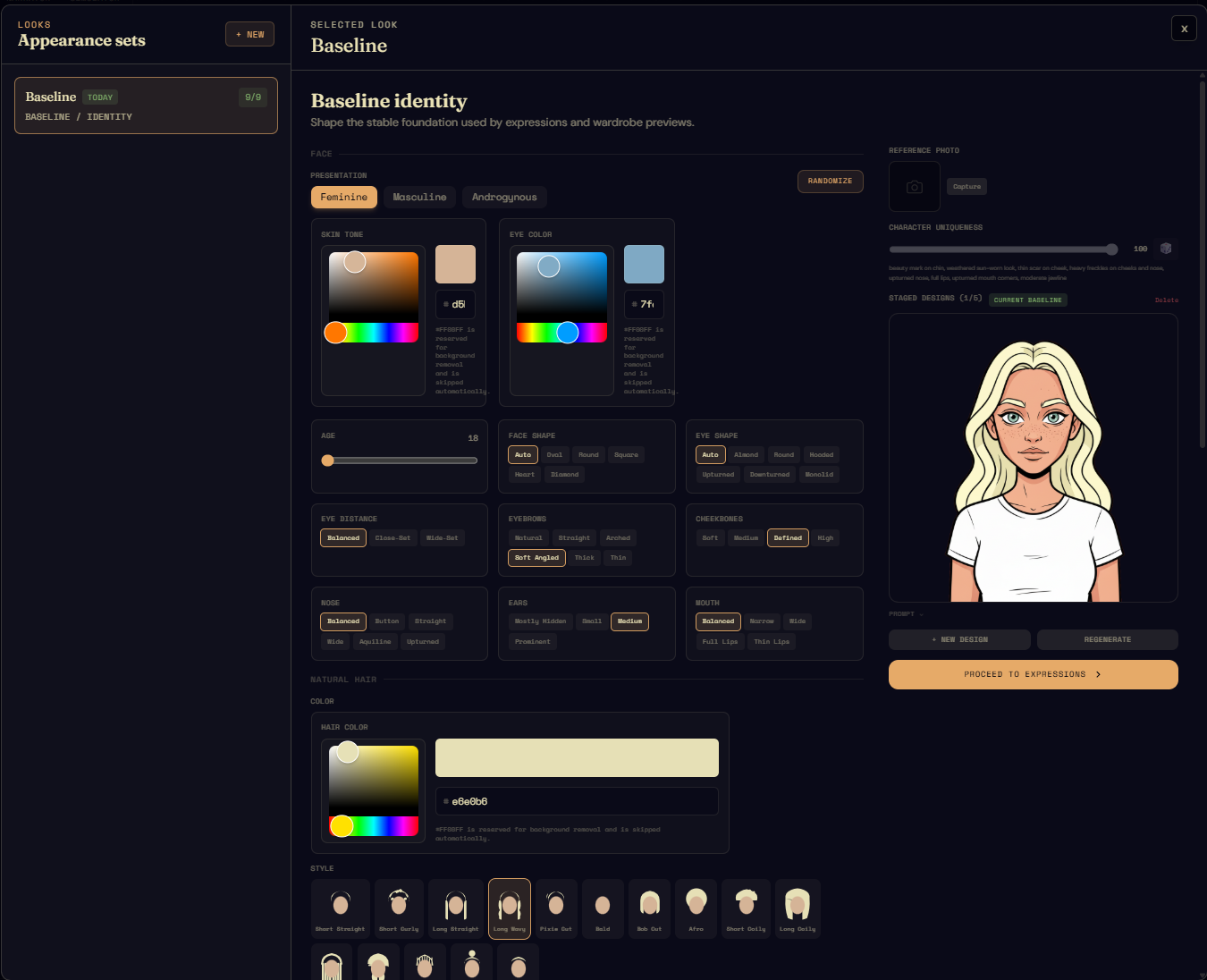
A new appearance set lands in the list, ready to point at a wardrobe of your choosing.
The Calendar preview entry
As soon as a real appearance set exists in the sidebar, a special row called Calendar preview appears at the bottom of the list. Click it for a year-at-a-glance view of which set is scheduled to be active on each day.
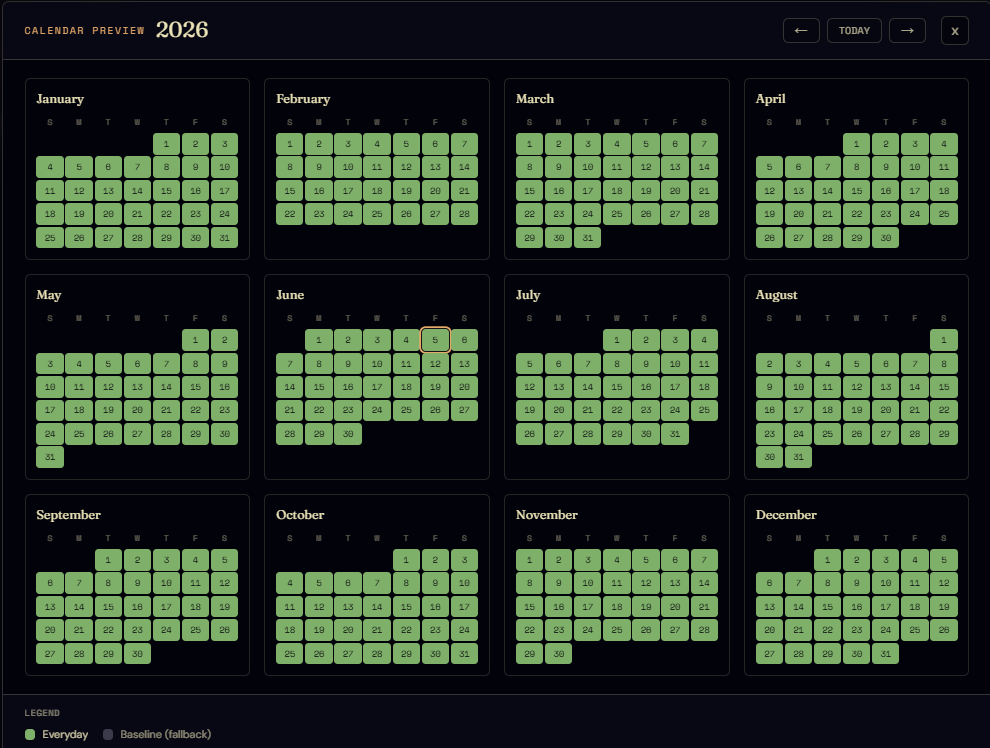
With one set in the list, the preview is uninformative: that set is active on every day of the year, because there's nothing else to compete with it. The preview only earns its keep once you have several sets with overlapping or partial schedules. We'll come back to it.
Generating the styled frames
The central panel of the editor:
- Need a new look? — a shortcut back to the wardrobe editor when you decide the styling is wrong.
- Selected preset — a dropdown of wardrobes. The set's frames are generated against the selected preset's preview as the consistency anchor. (See the wardrobe chapter for why that preview matters — it's not decorative.)
- The nine-tile expression grid — identical to the one in the baseline expressions chapter. Generate all generates the eight non-neutral frames serially with the preview as reference; per-tile Animation and Regenerate tabs work the same as before.
One thing that's different here: the neutral tile's Regenerate tab is hidden, with a Wardrobe-owned · edit in Wardrobe hint in its place. The neutral in a styled set IS the wardrobe's preview — to change it, go back to the wardrobe editor and regenerate the preview there. The change propagates to this set automatically.
Activation — when does this set win?
The interesting part of the editor is the Activation section above the frame grid. It's where you tell the runtime when this particular set should be the one a visitor sees.
The expand toggle reveals three selection modes:
- Default — the fallback. If no other set's rules match today, this one wins. Exactly one set across the avatar is the Default at any time; selecting Default here demotes whatever was previously Default.
- Dynamic — this set activates per a list of calendar rules. Multiple sets can be Dynamic; whichever has a matching rule today wins, with ties broken by sidebar priority (more below).
- Forced — overrides everything. When a set is Forced, the runtime serves it on every visit regardless of any other rule. At most one Forced set across the avatar at any time. Useful for pinning a special look for a launch day, a controlled-event period, or a quick rollback test.
With only one set in the avatar, all three modes mean the same thing: that set is always active. The mechanism only becomes meaningful once a second set exists to compete.
Dynamic rules
So I went back, made a second wardrobe ("Board Meeting Dressed"), came back here, ran Generate all to populate its nine frames, and now we have two sets that can both potentially be the day's pick. Time to make one of them Dynamic with an actual rule.
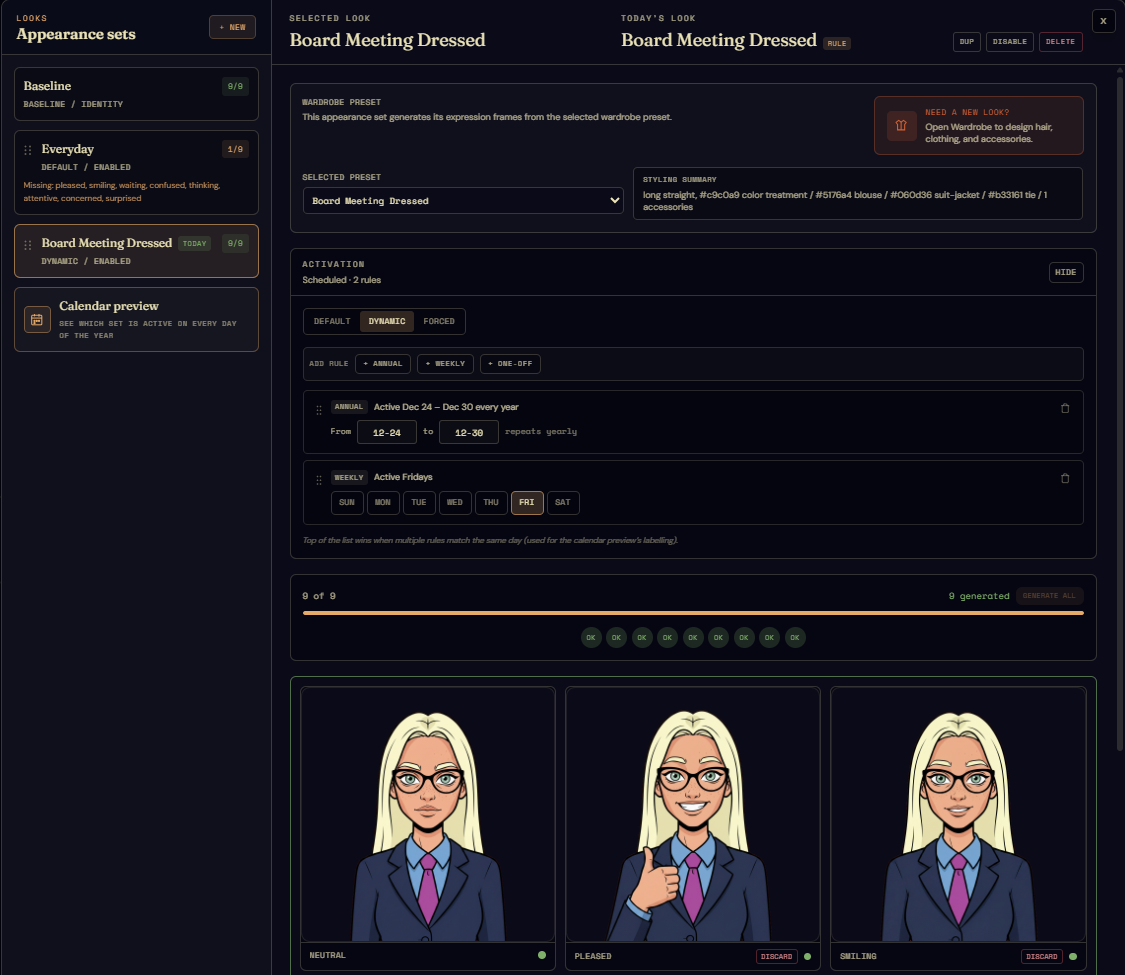
Three rule types — pick one or stack several:
- Annual — a date range (e.g. Dec 20 – Dec 31) that repeats every year. Useful for seasonal looks tied to a calendar window.
- Weekly — a set of weekdays. Whenever today's weekday is in the set, the rule matches. Useful for "every Friday is Tooth Fairy Friday".
- One-off — a single dated interval that does not repeat the following year. Useful for one-time events like a launch day, a seminar, a controlled marketing window.
Any rule matching today's date counts as a match. A Dynamic set with no rules never activates.
Priority and the calendar preview
Activation rules across different sets don't know about each other, which means two Dynamic sets can both match the same day. The tie-breaker is sidebar order: drag-and-drop the rows in the left-side column to reorder them; higher rows win when several sets match on the same day. The Baseline row is pinned to the top (it's the absolute identity reference and never competes for activation), but every styled set below it is reorderable.
With multiple sets and rules in play, the Calendar preview finally becomes useful:
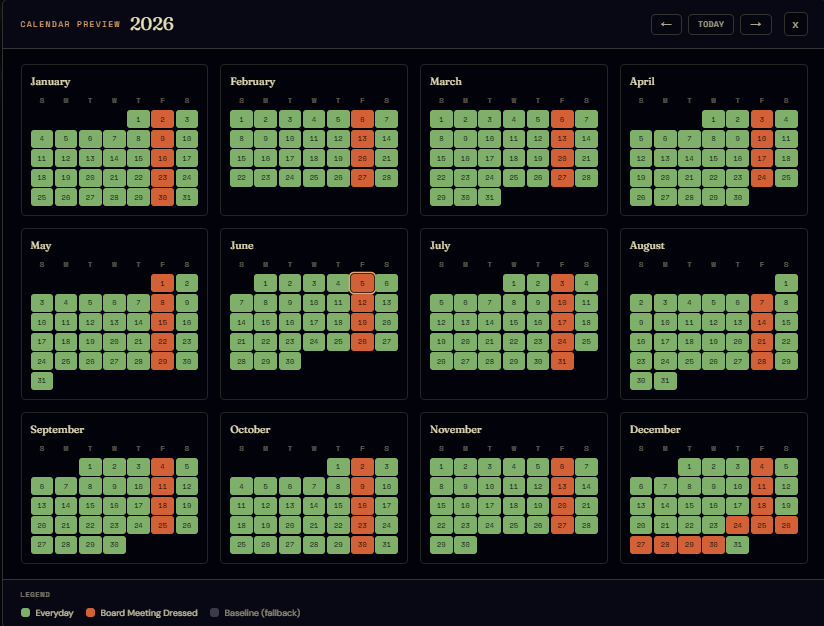
Each day cell is shaded with the colour of the set that would be served on that day. In the example above, the "Board Meeting Dressed" set is dynamic on a handful of dates (red), and every other day falls through to the Everyday default (green). At a glance, you can see whether your rules actually do what you intended — and whether two sets are silently overlapping in a way that the sidebar priority is quietly resolving for you.
This is the loop: configure activation, look at the calendar preview, adjust, look again. Get the year you want before any visitor sees it.